

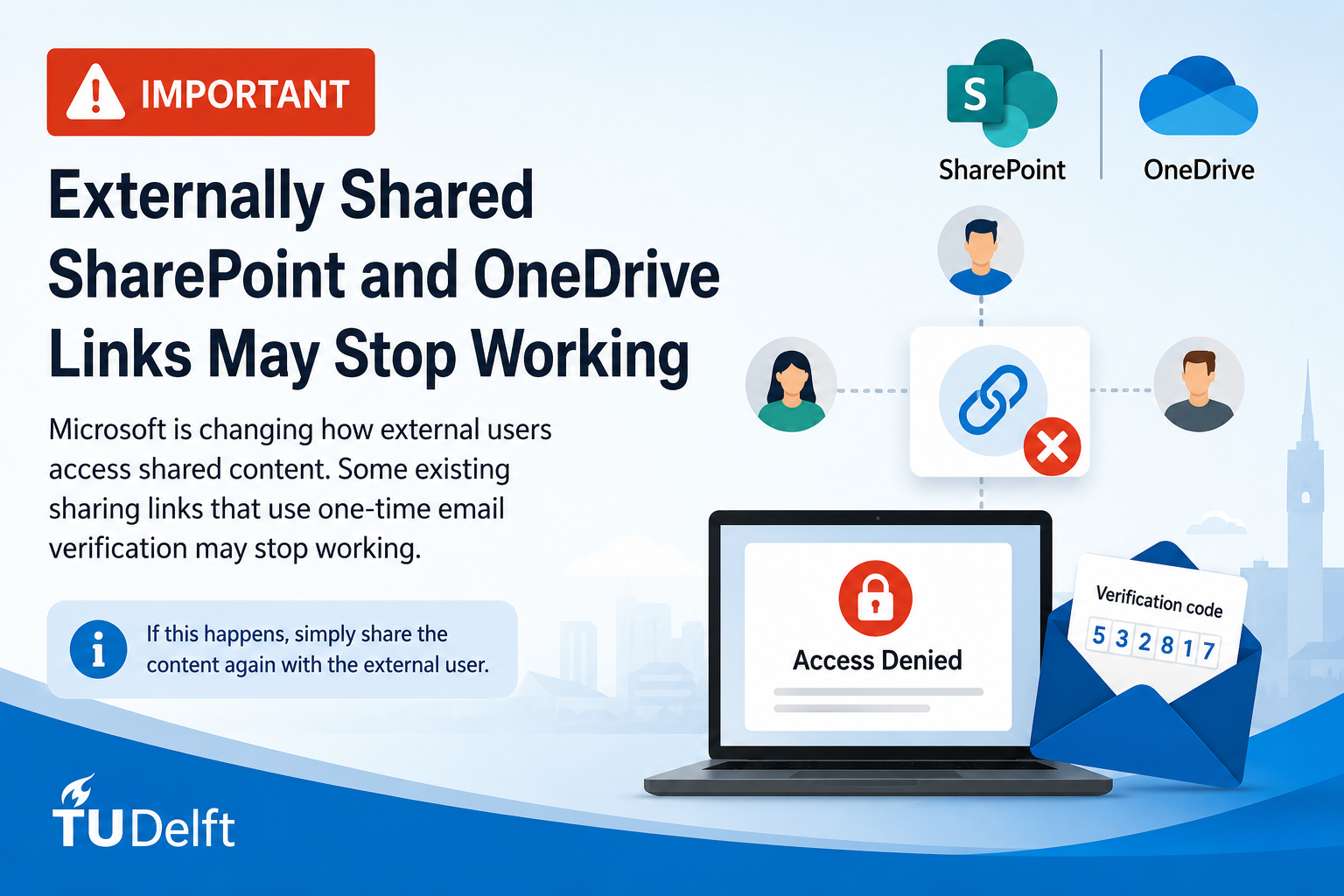
Microsoft will soon change how external users access files and folders that have been shared directly through SharePoint and OneDrive. Because of this change, some existing sharing links that are currently used with customers, suppliers, and other external contacts may stop working.
Who is affected?
This information is relevant for employees and students who have shared files, folders, or SharePoint sites directly with people outside TU Delft using a sharing link that requires a one-time verification code sent by email.
For example:
- Sharing a document with a customer
- Sharing a folder with a supplier
- Sharing files with an external partner through a SharePoint or OneDrive link
What is not changing?
If you collaborate with external users through a Microsoft Teams team and those users have been added as guests, there is no impact.
External users who already have guest access through Teams will continue to access shared files and folders in the usual way.
What is changing?
In the past, it was possible to share documents, folders, or entire SharePoint sites with external users by sending a direct sharing link. These users could access the content by entering a one-time verification code they received by email.
Microsoft is changing this access method, and as a result, some of these existing links may stop working. External users may suddenly receive an “Access Denied” message, even if the link worked previously.
What does this mean for your external contacts?
This may affect:
- Customers who access documents through shared links
- Suppliers with access to shared folders
- External partners who exchange files through SharePoint or OneDrive
If an existing link stops working, the external user may need a new invitation before they can access the content again.
What do you need to do?
At the moment, no action is required.
However, it’s good to be aware that external contacts may reach out if they can no longer open content that was previously shared with them.
When that happens:
- Locate the document, folder, or SharePoint site that was shared.
- Share it again with the external user.
- The user will receive a new invitation.
- Guest access will be created for that user if it does not already exist.
Once guest access has been set up, the external user can continue working with the shared content.
If the user has already been added as a guest in the past, access may work immediately. In some cases, they may need to complete a few additional steps, such as setting up Multi-Factor Authentication (MFA) for their guest account.
Summary
- No changes for external users who already collaborate as guests in Microsoft Teams.
- External users who access content through individually shared SharePoint or OneDrive links may be affected.
- Existing sharing links that use one-time email verification may stop working.
- If this happens, simply share the content again with the external user.
- Some external users may need to complete additional setup steps, including MFA registration.
Need help?
If you receive questions from external contacts, are unsure how content was originally shared, or need assistance re-sharing files or folders, the ICT Service Desk can help.
For more information about SharePoint, OneDrive, and external collaboration, please visit:
IT Manuals
https://www.tudelft.nl/en/it-manuals/office-365/sharepoint-online-and-onedrive-for-business/share-files-and-folders-in-sharepoint-and-onedrive



 English
  Dutch
Dutch