

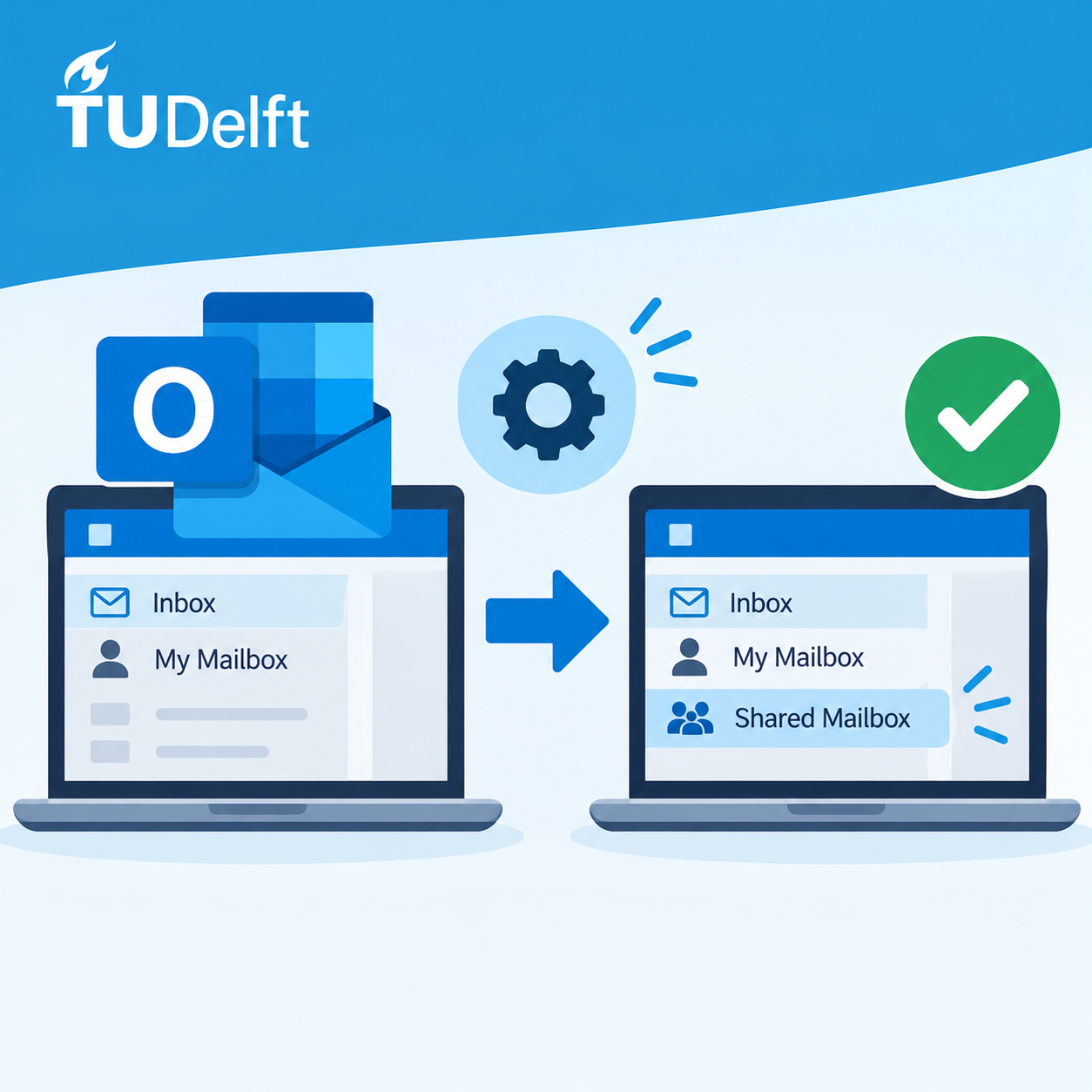
Shared mailboxes in Outlook for Windows will soon be added automatically. From now on, users no longer need to manually add shared mailboxes to Outlook. Existing permissions remain unchanged.
What Does This Mean?
Shared mailboxes for which you already have access will automatically appear in Outlook for Windows, both in Classic Outlook and New Outlook.
The mailbox will be shown underneath your personal mailbox in Outlook.
If additional shared mailboxes suddenly appear, this means you already had permission to access them, but they had not previously been added to your Outlook profile.
It may take several hours before newly assigned mailboxes become visible. If a mailbox does not appear immediately, restart Outlook and allow time for synchronisation.
Outlook Performance After Automatic Mailbox Mapping
After shared mailboxes are automatically added, Outlook may temporarily:
- Start more slowly than usual.
- Require additional time to synchronise mailbox content.
- Display newly added mailboxes that are still loading.
- Require a restart before all mailboxes become fully available.
These effects are typically temporary and should resolve automatically once Outlook has finished synchronising all mailbox data.
If Outlook remains slow after several hours or shared mailboxes do not load correctly, please contact the ICT Service Desk.
Outlook Classic vs New Outlook
If you are currently using Outlook Classic, we recommend switching to New Outlook where possible.
New Outlook generally provides better support for automatically mapped shared mailboxes and offers improved performance when working with multiple shared mailboxes. It will also become the primary Outlook client going forward.
Removing a Shared Mailbox
Shared mailboxes that have been added automatically through this new method can no longer be removed manually from Outlook.
If you no longer require access to a shared mailbox, submit a request through the appropriate Self Service Portal form. The ICT Service Desk will then remove your access.
Shared mailboxes that you manually added yourself in the past can still be removed manually through Outlook.
Other Email Applications
This change only applies to Outlook for Windows.
For the following applications, shared mailboxes must still be added manually:
- Outlook on the Web
- Outlook mobile apps
- Outlook for Mac
- Evolution
Why Is This Change Being Introduced?
Automatic mailbox mapping provides a more consistent user experience and eliminates the need to manually configure shared mailboxes. Once access has been granted, the mailbox will automatically appear in Outlook.
Support
If you have questions about shared mailboxes or experience issues accessing a mailbox, please contact the ICT Service Desk.



 English
 Dutch